
How to Sign In to 314DApp on PC: Scan-to-Login Guide (2026)
By the 314DApp Editorial Team · Updated July 24, 2026 · 4 min read
Disclaimer: This article is for educational purposes only and is not financial advice.
Quick Answer
Pi Network doesn't have a PC app, and you don't need to download anything. Open 314d.app in your PC browser, click "Sign in with Pi," and scan the QR code with your phone. Your phone confirms the login through Pi Browser; your PC handles the rest. There are two ways to scan, and both take about 30 seconds.
What You Need Before Starting
Three things:
A Pi Network account (if you've been mining Pi, you already have one)
Pi Browser installed on your phone (Android or iOS)
Any PC browser (Chrome, Edge, Safari, Firefox, all work)
You do not need to download a "Pi Network for PC" client. There isn't one. The whole point of this guide is that you sign in through your browser.
Two Ways to Scan and Sign In
Method A: Scan with your phone camera
This is the faster method if your phone is nearby.
On your PC, open 314d.app and click "Sign in with Pi" in the top right.
A QR code pops up with a countdown timer.
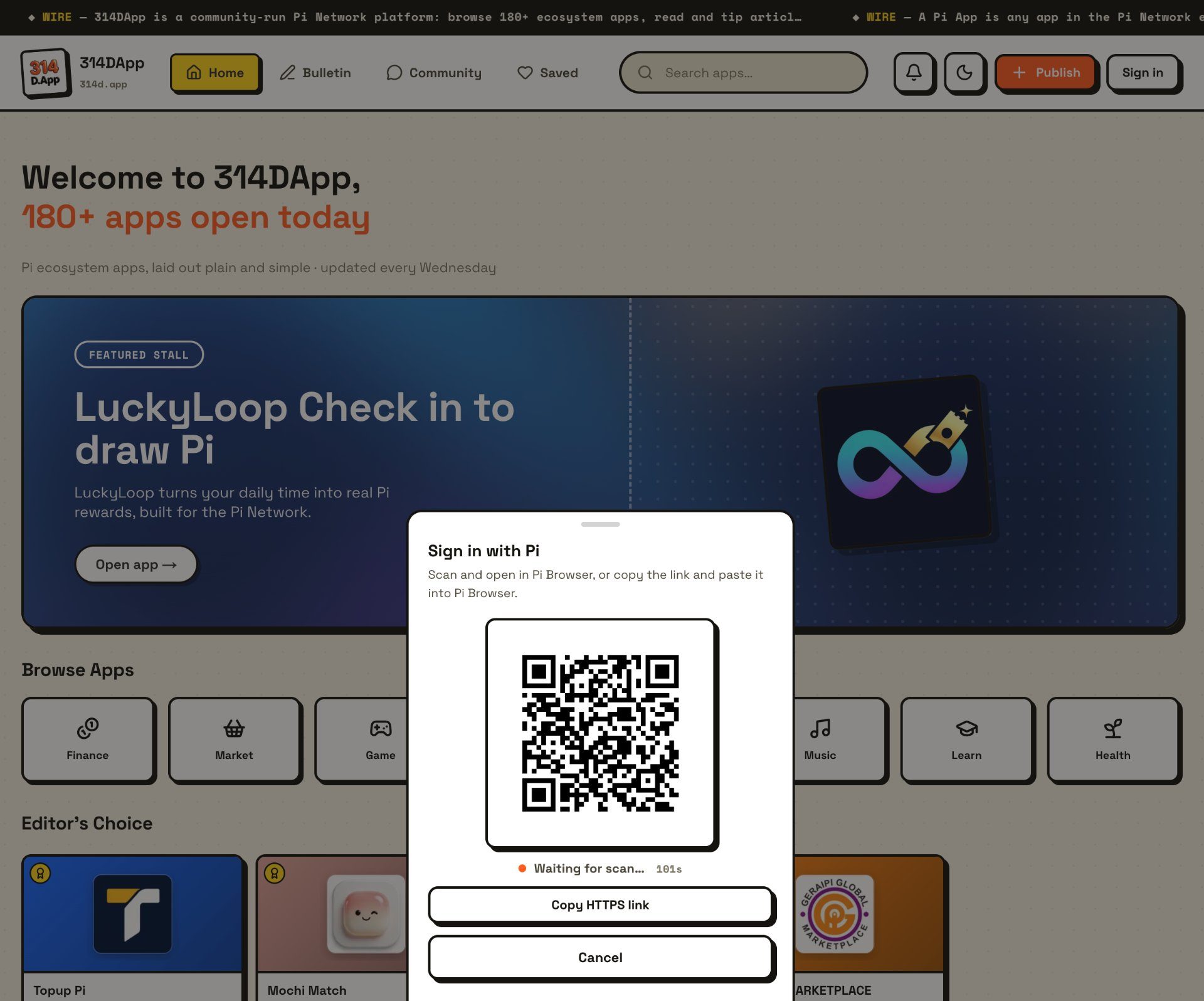
Open your phone's camera app and point it at the QR code on your PC screen.
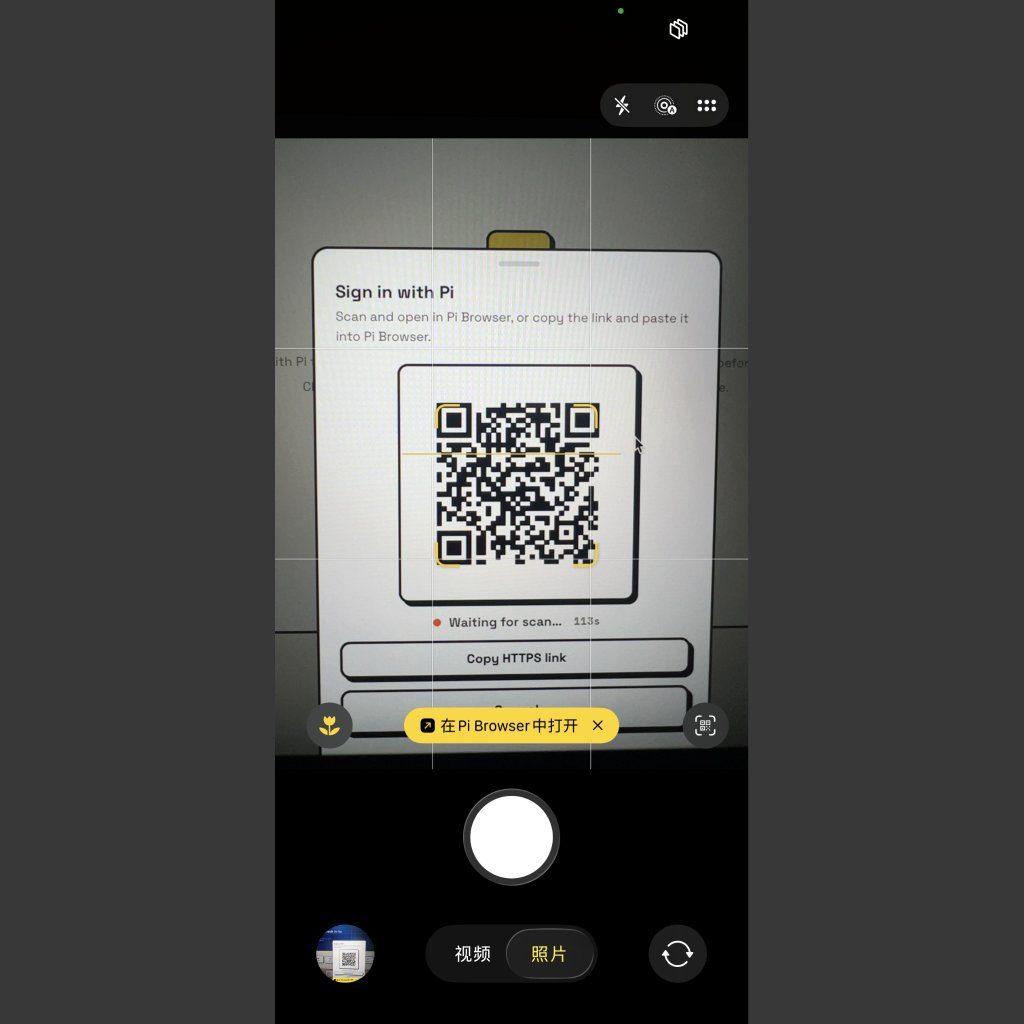
Your phone recognizes the link and opens Pi Browser automatically.
Pi Browser shows a confirmation page.
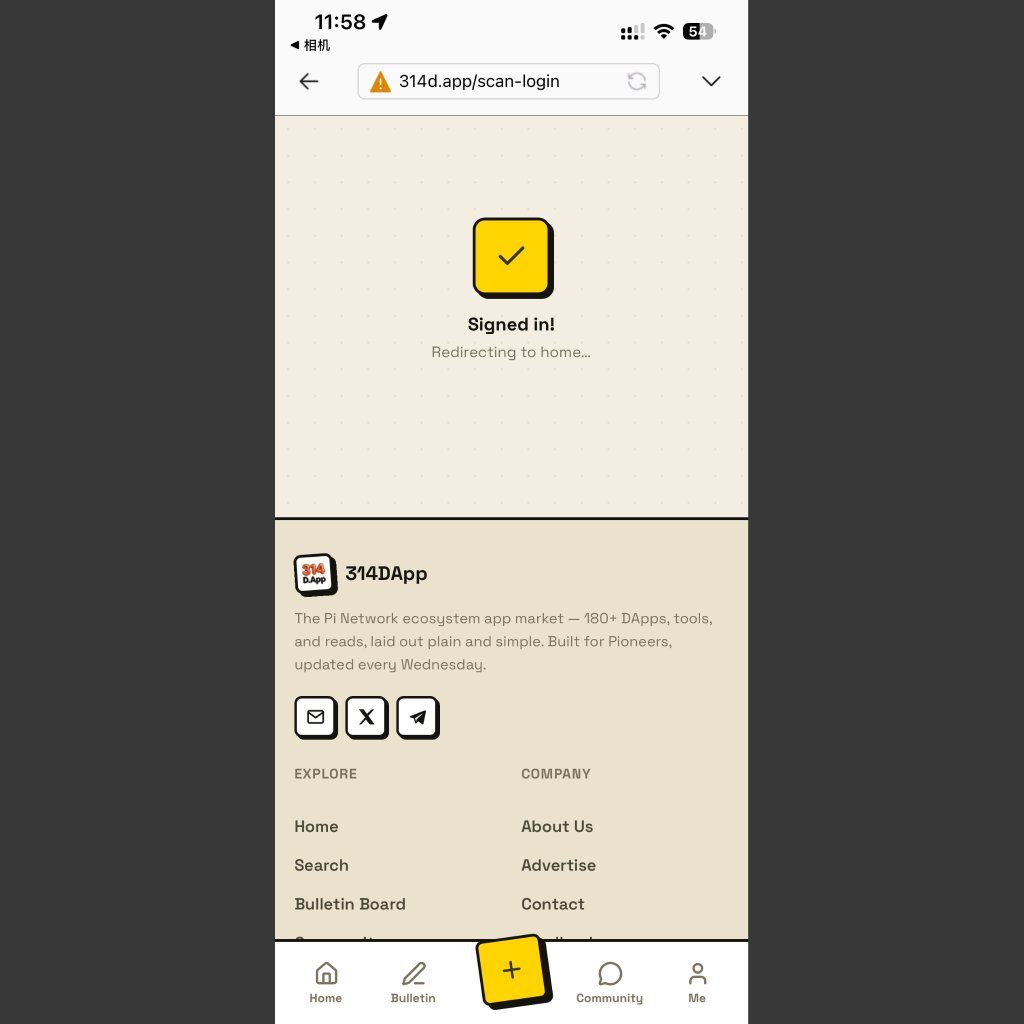
Your PC refreshes and you're signed in.
Method B: Scan with Pi Browser's built-in scanner
Use this if you're already in Pi Browser, or if your phone camera can't read the QR.
On your PC, open 314d.app and click "Sign in with Pi" (same QR code as above).
Open Pi Browser on your phone.
Tap the "+" button at the bottom, then select the scan option.
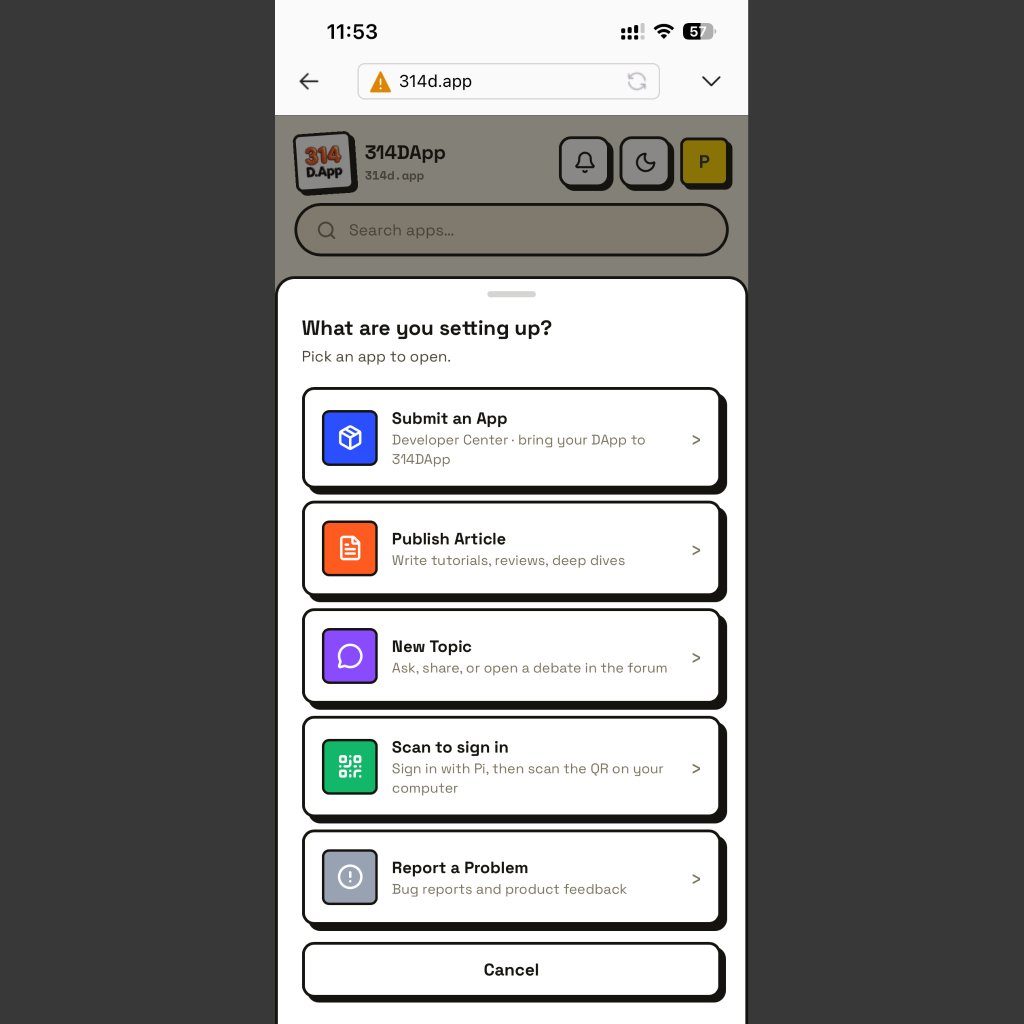
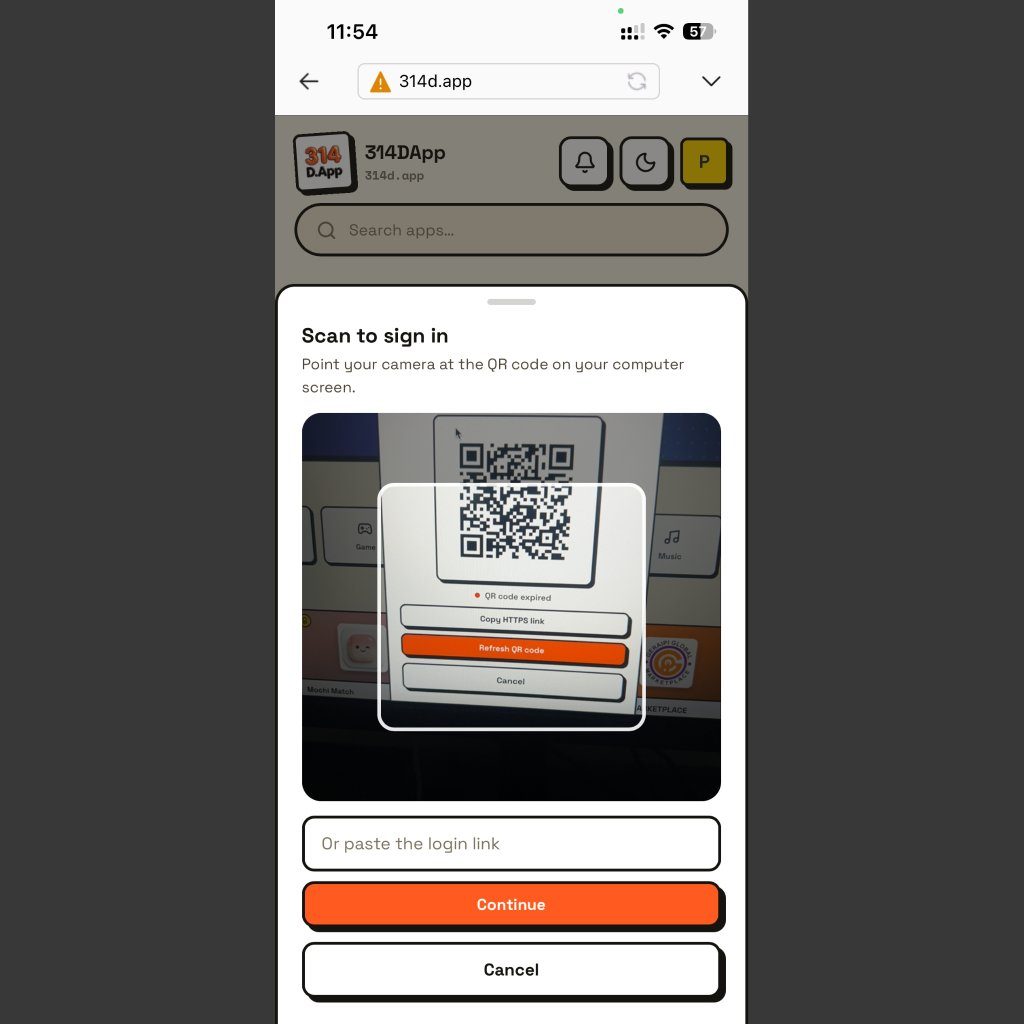
Point Pi Browser's scanner at the QR code on your PC screen.
The confirmation page appears.
Your PC refreshes and you're signed in.
Both methods do the same thing. Method A is quicker because your phone camera jumps straight into Pi Browser. Method B works well if you already have Pi Browser open.
If the QR Code Expires
The QR code has a countdown timer (usually around a minute). If it runs out:
Click "Refresh QR code" to generate a new one.
If your camera can't scan the screen, click "Copy HTTPS link" and paste it into Pi Browser's address bar manually. This skips the camera step entirely.
What You Can Do After Signing In
Once you're logged in on PC, you get the full 314DApp experience on a big screen:
Browse the app directory with 180+ Pi ecosystem apps
Read articles on the Bulletin Board and save favorites
Track your browse history
If you're a developer, manage your apps through the Developer Center
One thing you can't do on PC is Pi payments. Tipping authors, paying for apps, and any action that moves Pi all require a Pi SDK confirmation, which only works inside Pi Browser on your phone. You can browse and manage everything from your desktop, but when it's time to pay, your phone handles the confirmation.
For more on what 314DApp does, our Pi App guide walks through the whole ecosystem.
Why This Exists
Pi Browser only runs on phones. But a PC screen is much better for browsing directories, reading long articles, and managing apps. Scan-to-login bridges the two: your phone handles the security confirmation (because the Pi SDK only works inside Pi Browser), and your PC handles the browsing. It's a split that makes sense once you try it.
If you're new to Pi Browser, our Pi Browser guide explains what it is and how to get it. You can also read more about how 314DApp works.
Frequently Asked Questions
Can I download Pi Network for PC? No. There is no Pi Network app for PC, and you don't need one. Open 314d.app in any browser and sign in with the scan-to-login feature. Anyone offering a "Pi Network PC download" is not official.
Do I need Pi Browser on my PC? No. Pi Browser only runs on phones (Android and iOS). You sign in on your PC through a QR scan, and Pi Browser on your phone handles the confirmation. Your PC never needs Pi Browser installed.
Is scan-to-login safe? Yes. The login confirmation happens inside Pi Browser on your phone, through the Pi SDK. Your PC never sees your passphrase or wallet keys. The QR code is a one-time ticket that expires, so it can't be reused.
What if my phone camera can't scan the QR? Use Method B (Pi Browser's built-in scanner) instead. If that also doesn't work, click "Copy HTTPS link" on your PC and paste it into Pi Browser's address bar. All three paths end up at the same confirmation page.
Does it work on Windows and Mac? Yes. Scan-to-login works on any PC browser, regardless of operating system. Windows 10, Windows 11, macOS, Linux: as long as the browser can open 314d.app, the QR code will display and the login will work.
Loading comments…